
DISCOVER
How to save places with Wanderlist
Like Spotify playlists, but for places: save the café you saw on Instagram, the beach from a friend's trip, or dream cities, and see them all on one map when it's time to plan.
STEP 1 · WHAT IT IS
What Wanderlist is
Think of Wanderlist like creating playlists in Spotify — but for places. Just like you save songs to different playlists for road trips, workouts, or chill Sunday mornings, Wanderlist lets you save cafés, viewpoints, beach shacks, and dream cities whenever you discover them. When a weekend escape or holiday comes together, your ideas are already waiting for you instead of getting lost in screenshot albums or messy chat bookmarks.
Playlists for your travel life: Stop losing recommendations from Instagram reels, food blogs, or friend conversations. Just like queuing tracks into custom playlists, Wanderlist lets you drop places into custom lists (by city, vibe, or occasion) and plots them all on an interactive map.
Where to find it
Head to your Profile tab and tap Wanderlist. All your starter collections and custom lists appear in one organized hub.
Independent of trips
Save places anytime, even when you don’t have an active trip planned. When you finally book flights or decide on a destination, your saved spots are ready to drop directly into daily itineraries.
STEP 2 · STARTER LISTS
Your starter lists
To help you hit the ground running, every Getaway member starts with three built-in lists designed for everyday travel inspiration:
| Starter List | What it’s for | Best used for |
|---|---|---|
| ❤️ My Favorites | Places you’ve been and loved, and want to remember or recommend to others. | Favorite cocktail bars, rooftop cafés, beloved boutique stays, and repeat vacation spots. |
| 📍 Want to Go | Spots you’ve heard about and want to check out soon. | New restaurant openings, weekend brunch spots, museums, and local hidden gems. |
| 🌍 Bucketlist Cities | The big dream destinations you want to visit someday. | Faraway cities, international itineraries, and once-in-a-lifetime adventures before 30. |
Built-in foundation: You can edit the name and description of your starter lists at any time to match your voice. Default starter lists cannot be deleted, so you’ll always have a reliable place to store ideas.
STEP 3 · SAVE A PLACE
Save a place from anywhere in Getaway
Whenever you discover an inspiring spot while browsing Getaway, saving it takes just a couple of taps.
- Browse Spot
- Tap Save 🔖
- Choose “Save to Wanderlist”
- Pick List(s)
- Saved Instantly
Save from across the app
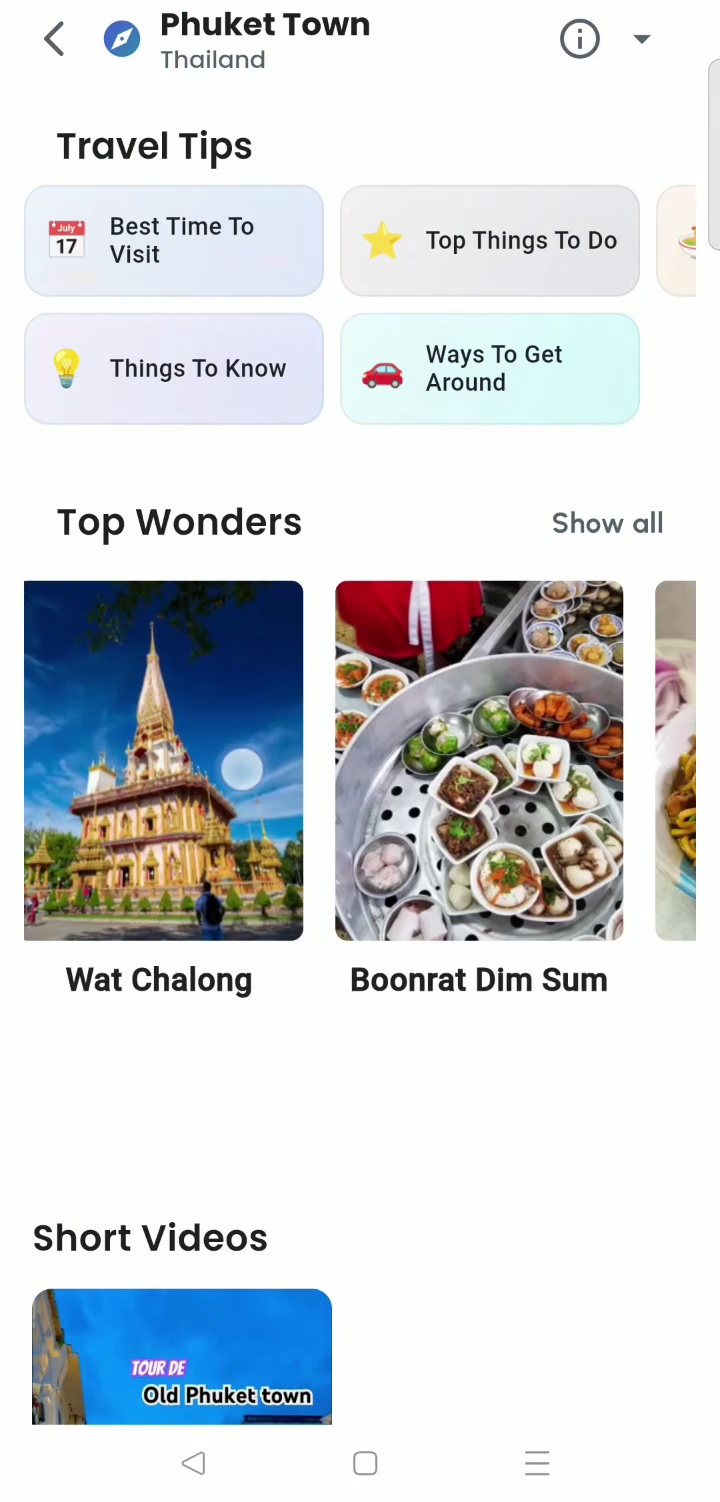
You can save places directly from Top Attractions in an Explore page, Top Eateries listings, Curated Itineraries, Themed Playlists, or any place’s individual detail screen.
Select multiple lists at once
A single place can live in more than one list. Tag a beachfront café in both “Goa Beach Shacks” and “Want to Go”. Lists that already contain the place will show a clear Added badge.
Create a new list on the spot
Found something that doesn’t fit existing collections? Tap New list directly inside the save bottom sheet to create and name a new list without losing your browsing context.
Add to a trip or travel guide
The same save sheet also lets you send the place directly into an active trip itinerary or save it to a personal travel guide.
STEP 4 · CREATE LISTS
Create your own custom lists
Beyond the starter defaults, create tailored lists for specific cities, upcoming seasons, travel vibes, or personal hobbies.
- Wanderlist Tab
- Create New List (+)
- Name & Pick Emoji 🎨
- Add Description
- Tap Save
Name it specifically
Specific titles make trip planning effortless later: “Goa beach shacks”, “Rainy-day Mumbai cafés”, or “Japan 2027”.
Pick a distinctive emoji
Assign a unique list icon (like 🍜 for street food or 🏖️ for coastal escapes) so you can scan and find lists in seconds.
Add notes for future you
Use the description field to leave handy context: “Must visit at sunset”, “Places with vegan desserts”, or “Spots recommended by Maya”.
Inspiration: popular list ideas
STEP 5 · MAP
See your list on a map
Reading a list of names doesn’t show you how close spots are. Wanderlist lets you flip any list into a full-screen interactive map to visualize geography instantly.
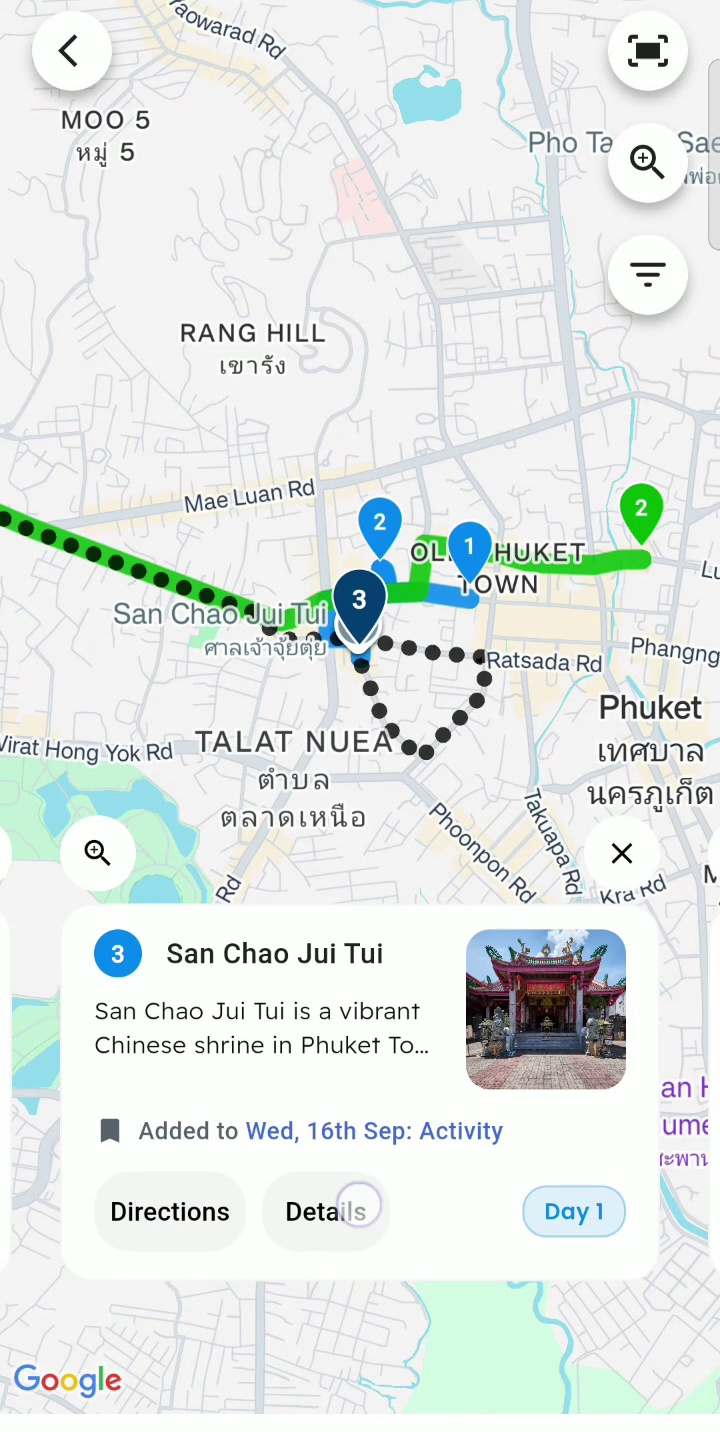
Tap “Fit All” to see the big picture
Tap Fit All to automatically auto-zoom and frame every pin in your list across the map at once.
Interactive pins and cards
Tap any pin on the map to jump directly to that place’s preview card, check its distance, and open Details or Directions.
Spot geographic clusters
The map makes it easy to see which saved spots sit within walking distance of each other. Group them together to build seamless half-day itineraries without zigzagging across town.
STEP 6 · A SAVED PLACE
Open a saved place
Tap any item in your list or on the map to access rich context before you go.
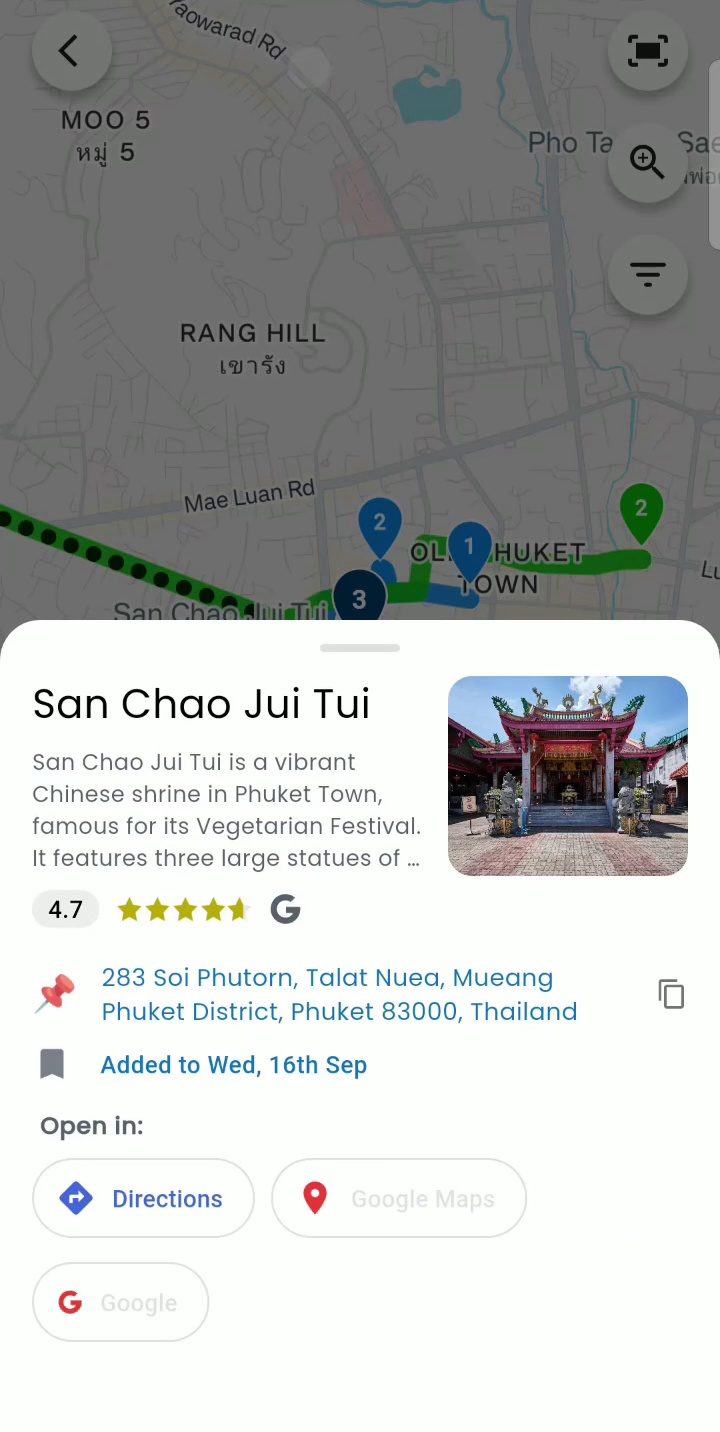
One-tap turn-by-turn directions
Tap Directions to launch navigation immediately in Apple Maps or Google Maps based on your current live location.
Research on Google & YouTube
Tap Open in Google Map, Google, or YouTube to check live opening hours, browse user reviews, scan menus, or watch travel videos before arriving.
Copy address in one tap
Tap the street address to copy it cleanly to your phone’s clipboard, making it seamless to paste into Uber, Ola, or delivery apps.
STEP 7 · EDIT
Edit, remove & delete
Keep your Wanderlist clean and updated as your travel tastes evolve.
| What you want to do | How to do it in Getaway | What happens |
|---|---|---|
| Rename a list or edit description | Open the list → Tap Edit list | Update title, emoji icon, or description notes instantly. |
| Remove a saved place | Open the place’s three-dot menu → Tap Remove from list | Removes the place from this specific list while keeping it in your other lists. |
| Delete a custom list | Open list → Edit list → Tap Delete list | Permanently removes the custom list and unlinks its saved items. |
Starter list protection: Default lists (My Favorites, Want to Go, and Bucketlist Cities) cannot be deleted. If you attempt to delete them, Getaway will display: “Default lists can’t be deleted”.
STEP 8 · PLAN IT
From bucket list to real plan
Wanderlist isn’t just a static digital scrapbook—it’s the fuel for your next adventure when the calendar opens up.
- Open Destination in Explore
- Start or Open Trip
- Add Saved Places to Days
- Optimise Route · Go!
Open your destination
When you’re ready to travel, open the destination page in Getaway’s Explore hub to review your saved pins against the city’s top attractions.
Add saved spots to itinerary days
Start a new group trip (or open an existing one). From the place’s save menu, choose Add to trip to schedule your saved cafés, viewpoints, and restaurants directly onto specific days.
Cluster before you schedule
Pro tip: Open your Wanderlist map before building your day schedule. Group spots that sit in the same neighborhood into the same day to minimize drive times and maximize vacation fun.
CHECKLIST & FAQ
Wanderlist checklist & common questions
Everything you need to turn inspiration into unforgettable travel moments.
Your Wanderlist checklist
- Use the three starter lists (My Favorites, Want to Go, Bucketlist Cities) from day one.
- Save spots the moment you see them in Explore, eateries, or curated playlists.
- Create custom lists per city or vibe, with recognizable emojis.
- Switch to Map view to see which saved spots sit close together.
- Check 1-tap Directions and research menus or reviews before heading out.
- Turn your bucket list into a real group trip when the calendar is clear!
Frequently asked questions
Who can see my Wanderlist?
Only you. Your Wanderlists are private to your account, so you can curate dream getaways and personal wishlists in total privacy.
Can I save the same place to more than one list?
Yes, absolutely. In the save bottom sheet, select as many lists as you like with simple checkmarks.
Why doesn’t a saved place show on the map?
A few specialty spots or pop-up events may not have verified GPS coordinates yet. They remain safely stored and visible in your list view.
Can I delete My Favorites, Want to Go, or Bucketlist Cities?
No. These three starter lists are permanent core collections in your account. You can rename them and edit their descriptions, but they cannot be deleted.