
SOCIAL CALENDAR
Enters your new social calendar
No more boring office work calendars. Organise better for better socialising with friends and family: see trips, hangouts and free weekends in one place, compare calendars with Smart Find, and plan when everyone's free.
STEP 1 · SOCIAL CALENDAR
Enters your new social calendar: organise better for better socialising
Traditional calendars were invented for 30-minute Zoom syncs, corporate deadlines, and office drudgery. They were never designed for your real life. Your social life shouldn’t be squeezed between spreadsheet reviews and dentist reminders.
No more boring office work calendars: Enter Getaway — your dedicated social calendar crafted to help you organise better for richer, stress-free socialising with friends and family. Every weekend getaway, Sunday brunch, road trip, and birthday party lives in one joyful space, so you can see open weekends at a glance without digging through chaotic WhatsApp chats.
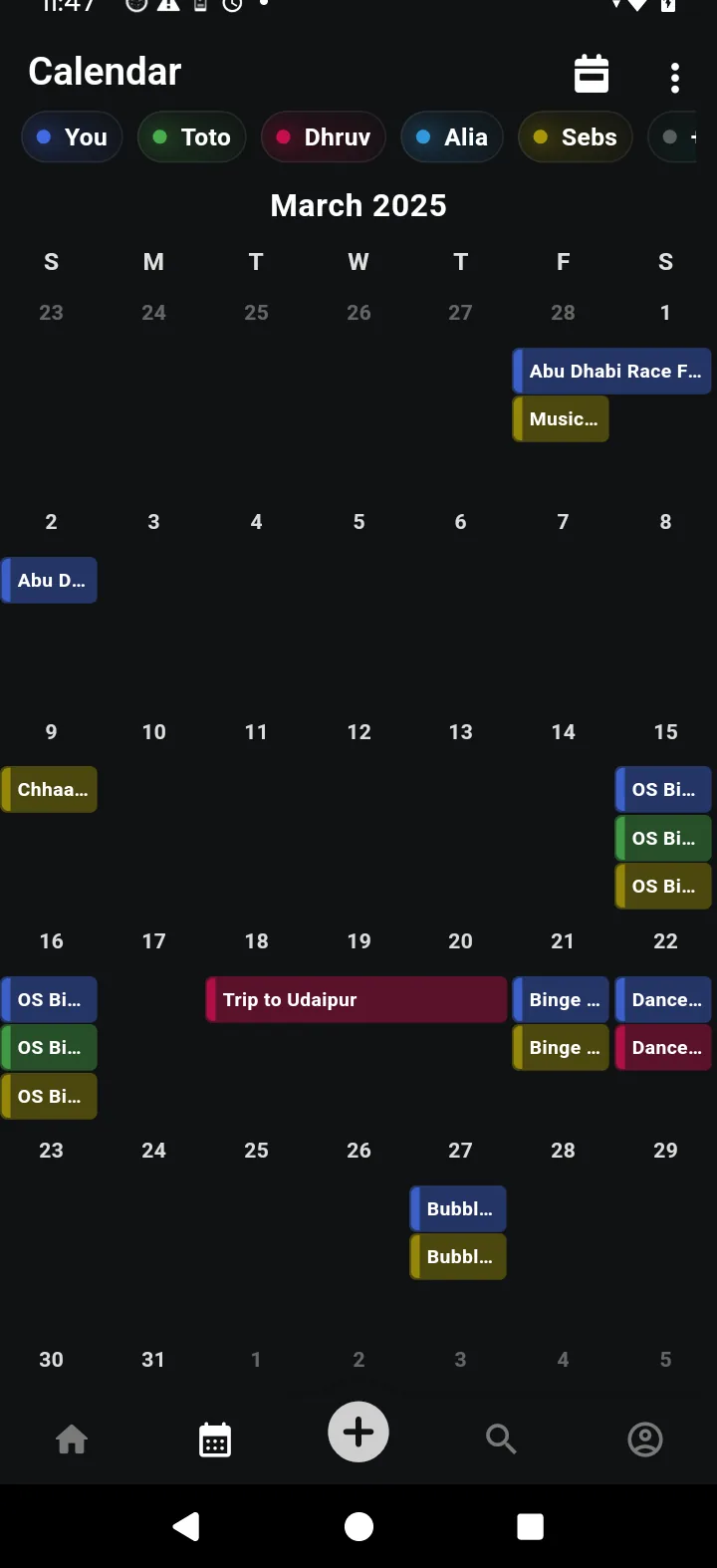
Month or schedule view
Switch smoothly between Month view to spot open weekends across the calendar, and Schedule view for an inspiring chronological stream of upcoming trips and hangouts.
Tap any day for details
Tap a date on the calendar to open its day drawer. Review the run of show, see who from your crew or family is joining, and tap any card to open View plan immediately.
Mine or shared
Filter between My calendar (your own plans and synced personal events) and Shared (including all calendars friends and family have shared with you).
Always in sync
Whenever someone edits a trip’s dates, adds an activity, or cancels a reservation in Getaway, your calendar updates automatically in real time.
STEP 2 · CONNECT
Bring in Google, Outlook, phone calendars & holidays
The secret to better socialising is knowing when you’re truly free without work creeping in. Connect your external work calendars (Google, Outlook, or phone) in read-only mode so Getaway knows your boundaries. Your colleagues never see your Getaway hangouts, but you’ll never accidentally schedule a road trip over an all-hands sprint or family anniversary.
- Calendar Tab
- Calendar Settings ⚙️
- Choose Calendar Source
- Authorize Account
- Badged Events in Feed
| Source | What it adds to Getaway | Best for |
|---|---|---|
| Sync with Google Calendar | Personal & work events from your connected Google / Gmail account | Keeping Google Workspace work meetings and personal reminders visible. |
| Sync with Outlook | Events from your personal Microsoft or enterprise Outlook calendar | Corporate schedules, client commitments, and Office 365 meetings. |
| Sync phone calendars | Events from native device calendars (iPhone Calendar or Android Calendar) | Local device reminders, doctor appointments, and family iCal feeds. |
| Holidays in India | Official public and bank holidays plotted automatically across the year | Instantly spotting long weekends and bank holidays for road trips. |
Clear source badging
Synced external events appear on your calendar with an identifying badge indicating where they originated (e.g. Google, Outlook, or Phone), so you always know what’s a Getaway plan versus a work call.
Deactivate whenever you want
Need to disconnect? Head back to Calendar Settings at any time and tap Deactivate. Synced events are removed from your Getaway view immediately.
Social planning tip: Turn on Holidays in India before planning your next road trip or family reunion. Long weekends are the easiest dates to get everyone together without burning limited leave days.
STEP 4 · COLOURS
Colour-code everyone: bring your social circle to life
Boring office calendars are monotonous grids of grey and corporate blue. In Getaway, color brings your friends and family to life. Assign custom colors to yourself and each person who shares with you, so you can tell whose plan is whose at a single joyful glance.
Tap Customize 🎨
Tap Customize 🎨 at the top of your Calendar screen. You’ll see a roster of yourself and each friend currently sharing their calendar with you.
Assign distinctive color dots
Pick a unique color for each person (e.g. blue for you, emerald green for Toto, berry magenta for Dhruv, bright yellow for Sebs). Their commitments will render in that color across the month grid.
Toggle visibility switches
Need to clear visual clutter? Use the toggle switch next to any friend’s name to temporarily hide their plans from your grid without revoking the share.
Pro tip for effortless scanning
Keep your own calendar in one vibrant, high-contrast color (like bright blue or purple) and assign softer tones to friends. Your own hard commitments will immediately stand out while you hunt for free days.
STEP 5 · SMART FIND
Smart Find: Compare calendars and read the colours
Organising better means eliminating the dreaded “Who’s free next weekend?” back-and-forth in WhatsApp. Getaway’s Smart Find checks your friends’ and family’s calendars in real time and aggregates everyone’s availability into intuitive traffic light dots while you pick a date or schedule a plan.
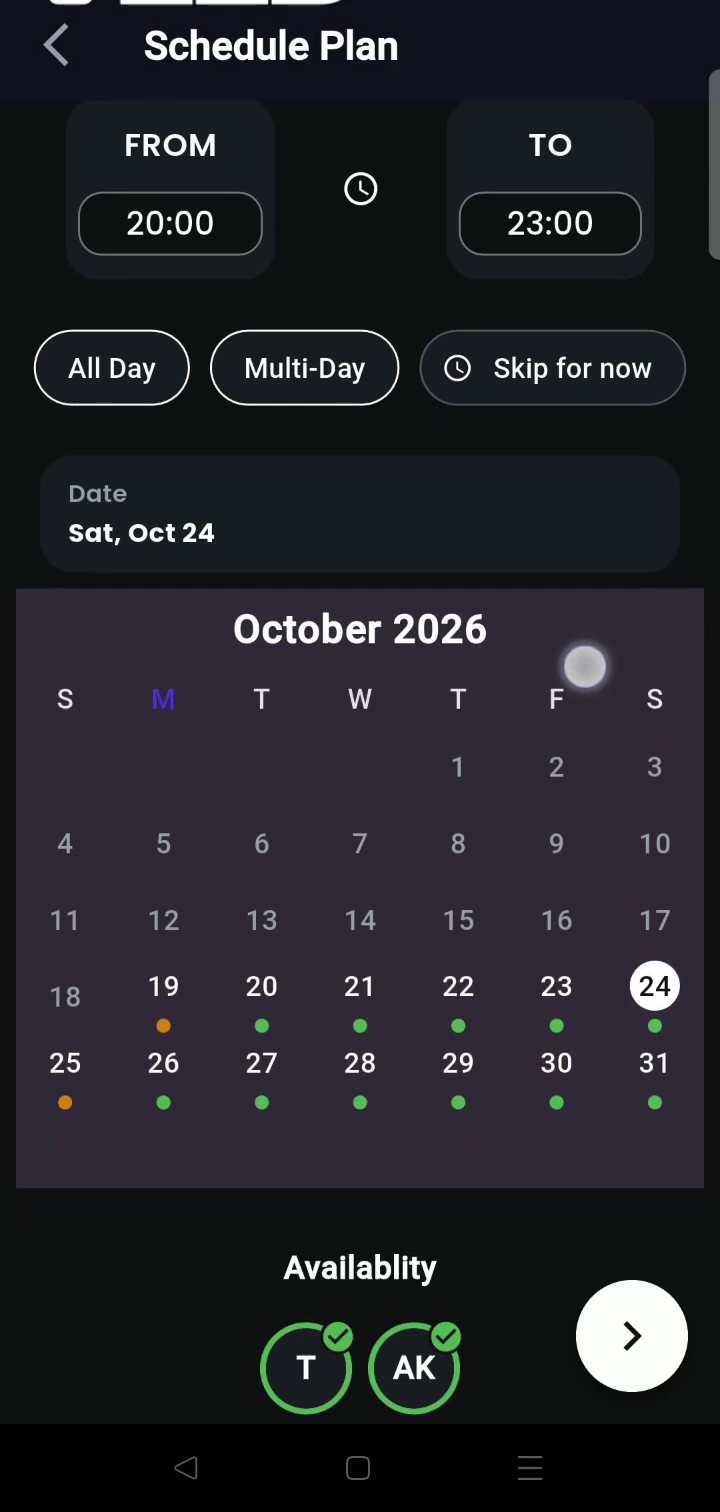
| Indicator | Availability Meaning | Recommended Action |
|---|---|---|
| 🟢 Green Dot | Everyone is completely free. Zero clashing plans across all selected friends. | Tap Plan this day immediately to lock in the hangout or trip! |
| 🟠 Amber Dot | Some members are busy. At least one person has a conflicting event. | Tap the day to inspect who has a clash and whether a morning or evening slot works. |
| 🔴 Red Dot | Nobody is free. Multiple conflicting plans across the group. | Skip this date and scan for the next green or amber weekend. |
Pick your people with friend chips
Tap the friend chips along the top of the calendar to select exactly who Smart Find should compare. By default, everyone who shares their calendar with you is included.
Only confirmed plans count as Busy
Smart Find only counts plans a friend has accepted. Pending invitations they haven’t responded to yet won’t falsely block their calendar.
STEP 6 · PLAN THIS DAY
”Plan this day”: go from a free day to a plan
Finding a green day where your entire crew or family is free is magic. Don’t let it slip away—turn that open date into a concrete hangout or getaway in two taps, and start looking forward to it together.
- Spot Green Day 🟢
- Tap Date
- Tap “Plan this day”
- Choose Hangout or Trip
- Date Pre-Filled · Done
Choose Hangout
Pick Hangout for single-day plans: birthday dinners, Sunday brunches, movie nights, or weekend house parties. The date is pre-selected, so you just name the venue and invite the gang.
Choose Trip
Pick Trip for multi-day getaways: road trips, weekend retreats, or international vacations. Getaway pre-populates your start date and lets you build an itinerary.
STEP 7 · WHILE YOU CREATE
Busy warnings while you create a plan
Even if you didn’t check the calendar beforehand, Smart Find actively protects you from scheduling over existing commitments while composing a plan.
Friends roster above the date picker
When you reach the date and time selection screen in the create flow, avatars of invited friends who share their calendar with you appear directly above the calendar.
Instant “Has another plan” warning
Select a date and time slot. If any invited guest has an existing accepted plan, their avatar receives a clear Busy badge with the notice: “Has another plan at this time”.
Adjust before sending
Smart Find lets you shift your start time by a couple of hours or toggle to the next day before you even send the invite, avoiding the awkward “I can’t make it” replies.
STEP 8 · GROUPS
Group availability for your regular crew & family circles
If you have an ongoing Getaway group (like your college gang, flatmates, or family circle), you don’t even need individual calendar shares to coordinate dates.
Checks every single member
Open the group and tap the Availability tab. Getaway automatically checks every member of the group—even members who haven’t set up 1-on-1 calendar sharing with you.
Strict privacy protection
Group availability only ever displays Busy or Free dots. It never exposes personal event titles, locations, or notes to fellow group members.
Admins tap “Plan” to launch
Found a free slot? Group Owners and Admins can tap Plan right from the availability calendar to launch a trip or hangout with all group members automatically invited.
Learn more in our guide: How to use Groups for your regular crew →
STEP 9 · EXPORT
Add a plan to your own personal calendar
Want your upcoming Getaway trip or hangout to sit alongside your everyday meetings in Apple Calendar, Google Calendar, or Microsoft Outlook? You can export any event in seconds.
- Open Trip or Hangout
- Plan Settings ⚙️
- Tap “Add to Calendar”
- Choose Google / Apple / Outlook
- Event Synced with Map Link
Rich event details exported
Exporting adds the plan’s exact date, start/end time, venue address, and a clickable Google Maps / Apple Maps link directly into your native calendar app.
Direct link back to Getaway
The exported event notes contain a secure link straight back to the plan in Getaway, so you can check live guest RSVPs or updated itineraries anytime from your phone’s notification widget.
PRO TIPS
Organise better for better socialising with friends & family
Make your calendar work for your social life, not just your 9-to-5. Here is how to keep your calendar active, vibrant, and effortlessly coordinated.
Protect your weekends from work creep
Sync Google Calendar, Outlook, or your phone calendar once. Your work meetings and personal appointments stay updated on their own—no double-booking, and no “wait, I forgot I have dinner with family” surprises.
Rally your circle to share back
Social planning is a team sport. Share this guide with your regular crew and family, and ask them to share their calendar with you—even on the Busy/free only tier. Once everyone shares, green weekends appear instantly.
Use polls when dates clash
If no upcoming weekend is 100% green, launch an in-chat Date Poll with two or three candidate dates. Let the group vote on which compromise date works best.
Maintain shared Wanderlists
Collect bucket-list travel spots, road trip ideas, and restaurants in a shared Wanderlist. When a surprise green long weekend pops up, you’ll already have an approved list of destinations ready to book.
PRIVACY & COMMON QUESTIONS
Privacy & common questions
We designed Getaway’s shared calendar from the ground up to respect personal boundaries and workplace privacy.
| What you share | What your friend sees | Your privacy level |
|---|---|---|
| Nothing (Hidden) | Zero visibility. Your schedule never appears on their calendar. | 100% Private |
| Busy/free only | Anonymous colored blocks labeled “Busy”. No titles, no locations, no notes. | High Privacy |
| Plan titles | Time blocks showing the event title only (e.g. “Flight to Goa”). | Balanced |
| Full details | Complete plan title, timing, venue, and itinerary overview. | Trusted Circles |
Your social calendar checklist
- Leave boring office work calendars behind: enter your new social calendar.
- Connect Google, Outlook, or your phone calendar to protect social time from work.
- Turn on Holidays in India to highlight long weekends automatically.
- Share your calendar with friends and family, choosing the privacy level per person.
- Assign distinct vibrant colors to your people with Customize 🎨.
- Compare calendars with Smart Find and look for 🟢 Green days where everyone is free.
- Tap Plan this day to create a trip or hangout on a clear date.
- Use Group Availability for your ongoing crews and family circles.
- Tap Add to Calendar on any confirmed plan to sync it to Apple or Google Calendar.
Frequently asked questions
Will my friends see the titles of my work meetings?
Only if you explicitly allow it. If you choose Busy/free only (the recommended default), friends only see a generic blocked slot with no meeting name, notes, or client details.
Why does a friend show as free when they have an invite that day?
Getaway’s availability engine only counts plans a friend has actively accepted. Pending or unconfirmed invitations do not block their schedule.
Can I share my calendar with some friends and not others?
Yes, absolutely. Calendar sharing is granular and configured friend by friend. You can share full details with your partner, busy/free blocks with college friends, and set it to Hidden for everyone else.
Does Getaway modify my external Google or Outlook calendars?
No. Connecting your calendar is a read-only sync that imports external events into your Getaway view. Getaway never edits or deletes events in your Google or Outlook account. To export a Getaway plan to your external calendar, use the Add to calendar option on that plan.
Do I have to share my calendar for group availability to work?
No. Group availability automatically evaluates the Getaway plans you have accepted within the app. It displays this to group members strictly as anonymous Busy or Free indicators without revealing details.
Does calendar sync work on both iOS and Android?
Yes. Native device calendar sync works on both iPhone (iOS) and Android smartphones, alongside cloud sync with Google Calendar and Microsoft Outlook.