
GROUPS
How to use Groups for your regular crew
Your WhatsApp group supercharged for trips and hangouts: keep your college friends, family, book club or weekend crew in one place with group chat, shared plans, member availability, and cross-plan balances.
STEP 1 · WHY
What a group is, and when to make one
A trip or hangout is one event. A group is the people you keep planning with. It stays around after the event ends, so the next plan starts with everyone already there.
Your WhatsApp, supercharged for trips & hangouts: Think of a Getaway group as your regular crew’s WhatsApp group, but purpose-built for real life. Instead of dates, venue links, polls, and split bills getting buried under hundreds of daily messages, every hangout and trip you plan together stays organized right beside your conversation.
| Attribute | Getaway Group | Trip or Hangout |
|---|---|---|
| Lifespan | Ongoing · stays active across years | Until the specific event is completed |
| What it includes | Chat, members, shared plans, member availability, cross-plan balance overview | Itinerary or schedule run of show, RSVPs, expenses ledger, photos & files |
| Examples | ”College Gang”, “Wander Boys”, “Running Club”, “Family Crew" | "Goa, Dec 2026”, “Rohan’s 30th Birthday”, “Sunday Brunch” |
Make a group for recurring crews
Create a group for people you see regularly: college companions, flatmates, weekend travel buddies, or your family circle. Whenever you want to do something together, you won’t have to rebuild the invite list from scratch.
Skip the group for one-off occasions
If you’re bringing together people who won’t plan together again (e.g. wedding guests, a work mixer, or a friend-of-friends birthday party), simply create the individual hangout or trip and invite them directly.
STEP 2 · CREATE
Create a group
Starting a group takes less than thirty seconds. You can choose a custom avatar, get instant name suggestions, and pick friends directly from your contacts.
- Connections Tab
- Select “Groups”
- Tap “Create group”
- Name & Avatar
- Add Members
- Create Group
Name it & add an optional description
Type your group’s name, or tap Suggest a name for fun, creative ideas like “Weekend Crew” or “The Getaway Gang”. You can also add an optional description answering “What brings everyone together?“
Give it a face
Tap the avatar badge to personalize the group. Choose a recognizable emoji (like ✈️, 🍕, or 🍻), snap a photo, or choose an image from your library.
Add your friends
Search your connections list and tick everyone you want to bring in. You’re added automatically as the Owner. A group can host up to 100 people, and you can invite more members at any time.
What added friends see
Friends you add receive a clear Group invitation screen where they can choose Continue with group or Exit group. Nobody is forced to stay in a group they didn’t want to join.
Group size limit: A Getaway group supports up to 100 members. For larger events like public festivals or broad community networks, create a public hangout invite instead.
STEP 3 · INVITE
Invite people with the group link
Rather than sending separate one-time tokens to every friend, every group has a reusable invite link you can paste anywhere.
- Open Group
- Tap “Invite”
- Copy Reusable Link
- Share in WhatsApp
- Friends Tap & Join
One reusable link for everyone
Unlike single-use plan invitations, the group link is reusable. Drop it into your existing WhatsApp group or Instagram DM, and anyone who clicks can join until the 100-member cap is reached.
Frictionless joining on app & web
The link opens a clean Join Group page on mobile or in the browser at app.usegetaway.com. Friends sign in with one tap, review the group title and member count, and tap Join Group.
Reset the invite link if it spreads too far
If someone accidentally forwards the link into an unwanted forum, owners and admins can tap Reset invite link in Group settings. The previous link stops working immediately, and visitors will see “This Group invite has expired or was reset by an admin.”
Admin control: Only group Owners and Admins have permission to reset the group invite link.
STEP 4 · CHAT
The group chat: Your WhatsApp supercharged for real plans
Every group has its own dedicated chat stream. Think of it as your crew’s WhatsApp group supercharged with built-in planning tools: instead of links, addresses, and dates getting buried under a flood of memes, Getaway’s chat is built directly around actionable social plans.
The Road Trippers 🚗
Alex, Chloe, Maya & 5 others


Actual group chat flow · Friends coordinate in the chat, drop a Getaway trip card, and join the itinerary in one tap without losing the details.
| What you share | What appears in the chat | How it helps your crew |
|---|---|---|
| Photos, videos & docs | Media stream in the conversation feed | Keeps past trip memories and tickets stored with the group. |
| A place / venue | Rich place card with address & Plan This button | Turns a casual “we should try this restaurant” into a real hangout in one tap. |
| A poll | Interactive poll card with live vote tallies | Helps the group decide dates, areas, or cuisines without endless back-and-forth. |
| A trip or hangout | Linked plan card with View Hangout or View Trip | Puts the active itinerary right in context so nobody asks “what’s the address again?“ |
Turn shared places into real plans
When someone shares a cafe, venue, or hotel card, tap Plan This directly on the bubble. Getaway pre-selects the venue and invites the group automatically.
Mute notifications without missing a beat
Too many messages while you’re working? Tap Mute notifications in Group settings. Unread message counts still track accurately on your badge so you can catch up whenever you’re ready.
STEP 5 · PLAN
Plan a trip or hangout from the group
The biggest superpower of a Getaway group is initiating plans. Instead of selecting friends one by one for every single weekend dinner or road trip, you can launch a plan directly from the group.
- Group Chat
- Tap ”+” / “Create Plan”
- Choose Trip or Hangout
- Members Auto-Invited
- Plan Appears in Group Feed
Everyone’s invited for you
When an owner or admin starts a plan from the group, all current members are added to the invite roster automatically, marked Included via group. You can easily untick anyone who can’t make this specific one.
Pinned in the group’s Plans tab
The new plan automatically appears under the group’s Plans tab in Upcoming plans, and posts a card into the group chat so everyone can RSVP in one tap.
Private plans & requesting to join
If you create a plan for only a subset of members, uninvited group members see This Plan is private on the card with a Request to join button. Hosts and co-hosts approve or decline directly from the request notification.
Audience linking from anywhere
You can also link any existing hangout or trip to your group later: simply select up to 3 groups as the audience on the Invite Guests step when composing a plan.
Who can create plans: Group Owners and Admins can launch new plans from the group. Regular members can suggest plans by sharing place cards or launching polls in the chat.
STEP 6 · AVAILABILITY
Find a time everyone’s free: Shared group availability
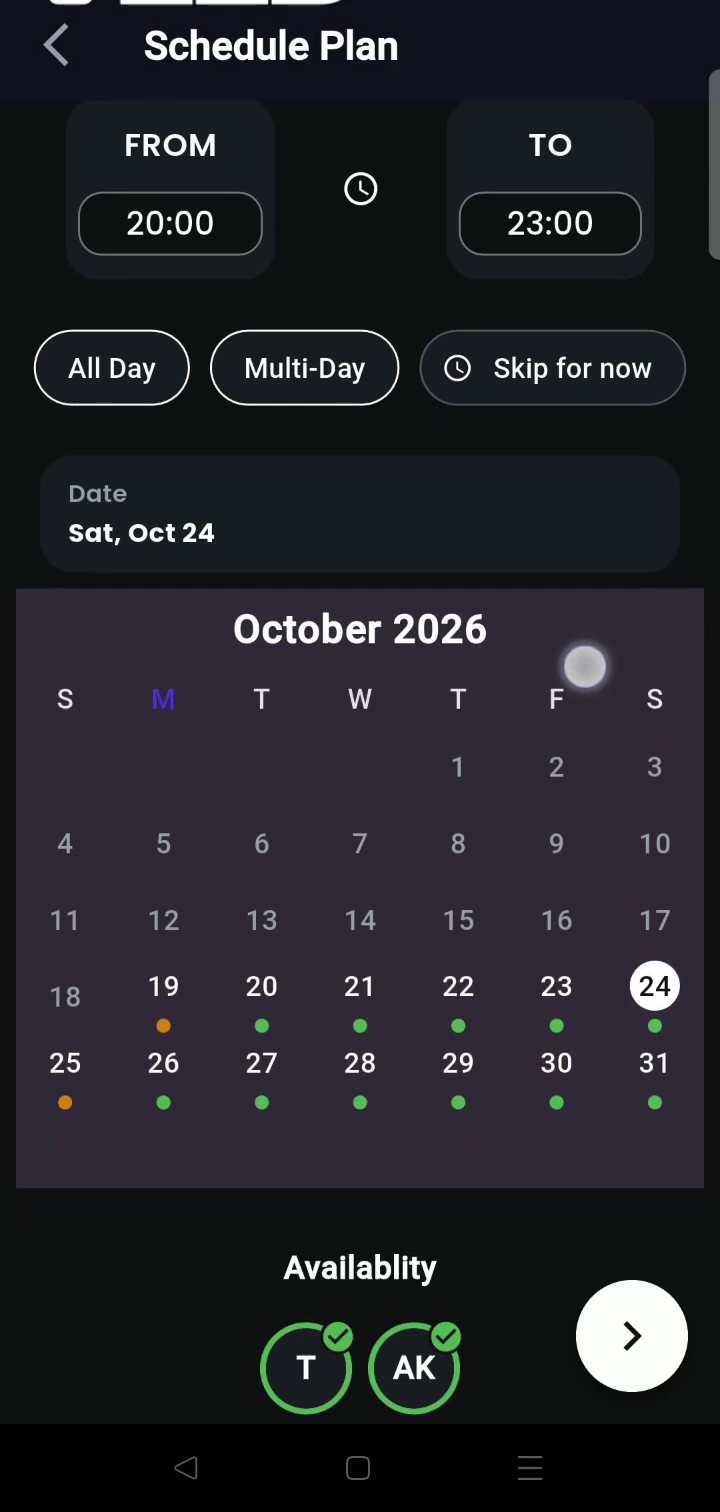
Coordinating dates across five or ten busy schedules is usually the hardest part of getting together. Getaway’s Group Availability solves this by aggregating calendars without exposing personal secrets.
- Open Group
- Tap “Availability” Tab
- Look for Clear Days
- Check Member Clashes
- Tap “Plan” to Lock In
See dots on busy days
The Availability calendar displays visual indicators on dates where group members already have scheduled Getaway plans, trips, or busy entries. You can instantly spot weekends with zero clashes.
Zero privacy invasion
Tap any time slot to see who is available. Members who have conflicting plans are labeled Busy. You only see that they are busy—never where they are going, who they are with, or what their private event is.
Turn open slots into a plan in one tap
Found a date that works for everyone? Owners and admins tap Plan, select Trip or Hangout, and the dates and times you just selected are pre-filled automatically.
Mobile availability: Group Availability is optimized for the mobile app where calendar synchronization runs in real time.
STEP 7 · MONEY
Money: balances across your plans
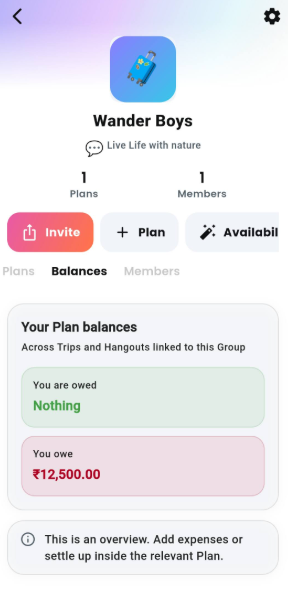
When you travel and hang out with the same friends over months, one person pays for dinner Friday, someone else books the weekend Airbnb, and another covers festival tickets. The group’s Money tab gives you one unified overview across all of them.
Your total at a glance
The top card shows what you are owed and what you owe, broken down per currency (e.g. INR ₹, USD $, EUR €). You’ll never have to manually tally up three different trips.
Person-by-person breakdown
See a row for every crew member with your net balance with them and how many plans that balance comes from (e.g. “₹4,200 across 2 plans”).
Tap into any plan to settle up
The Money tab is a centralized dashboard. To keep financial ledgers audit-proof, individual expenses and settlements live inside their respective plans. Tap any plan row under By Plan to open its expense sheet and settle up.
Need full details on expenses? Read our complete walkthrough on How to track and split group expenses for all 5 split methods, UPI settlements, and smart debt minimization.
STEP 8 · GOVERNANCE
Roles, settings & common questions
Groups support clear roles so organisers have control over invitations and planning without creating administrative friction.
| Group Action | Owner | Admin | Member |
|---|---|---|---|
| Chat, share places, vote in polls | ✅ | ✅ | ✅ |
| View plans, availability & personal balances | ✅ | ✅ | ✅ |
| Copy the reusable invite link | ✅ | ✅ | ✅ |
| Reset the group invite link | ✅ | ✅ | — |
| Create a trip or hangout from the group | ✅ | ✅ | — |
| Launch a plan directly from Availability | ✅ | ✅ | — |
| Promote members to Admin / Demote Admins | ✅ | — | — |
| Remove a member from the group | ✅ | ✅ | — |
| Transfer group ownership | ✅ | — | — |
| Edit group name, avatar & description | ✅ | ✅ | — |
| Mute notifications & leave the group | ✅ | ✅ | ✅ |
Managing group members
Owners and admins can tap any member in the Members tab to Make admin, Remove admin, Remove from group, or Transfer ownership.
Removing someone with an open balance
If you remove a member who still owes or is owed money in a linked plan, Getaway displays a confirmation prompt. Their financial ledger history remains preserved inside each individual plan so balances stay 100% mathematically correct.
Leaving a group
Tap Leave group in settings at any time. Your previous chat messages remain visible to the crew, and the group moves to your Archived list.
Your groups checklist
- Create a group for the crew you plan with regularly (friends, family, or club).
- Give it a fun title and custom emoji or photo avatar.
- Share the reusable invite link in your group chat.
- Check the Availability tab to spot open weekends before proposing dates.
- Create trips and hangouts directly from the group so everyone is invited at once.
- Monitor the Money tab to keep track of shared balances across all your plans.
- Promote a co-organiser to Admin to help manage plans and members.
Common questions
What is the difference between a group and a hangout?
A hangout is a single event with a specific date and time. A group is the ongoing crew you keep planning with: its chat, members, and plans stay together after each event ends.
Can I share the group link in WhatsApp or Telegram?
Yes. Group links are reusable, so anyone with the link can tap to join until the 100-person limit is reached. If it ever spreads too far, an admin can reset it immediately in settings.
Why can’t I create a plan from my group?
Only group Owners and Admins have permission to launch plans on behalf of the group. Regular members can suggest plans by sharing places with Plan This or starting a poll in the group chat.
Will other members see my private schedule in Availability?
No. The availability calendar only indicates that you are Busy during a conflicting time slot. It never displays the name, location, or details of your other plans.
If someone leaves the group, do their expenses disappear?
No. All logged expenses and settlement history remain intact within the individual plans where they occurred, ensuring no balance discrepancies.
How many people can join a single group?
A Getaway group supports up to 100 members.